Whostpress Panel: create an email account and set it up on your phone or computer
Print- 0
First, log in to Whostpress Panel. In your client area open Services, choose your hosting plan and click the button to log in to the panel. You can also go to https://panel.whostpress.com and use the username and password from your welcome email.
Create the mailbox
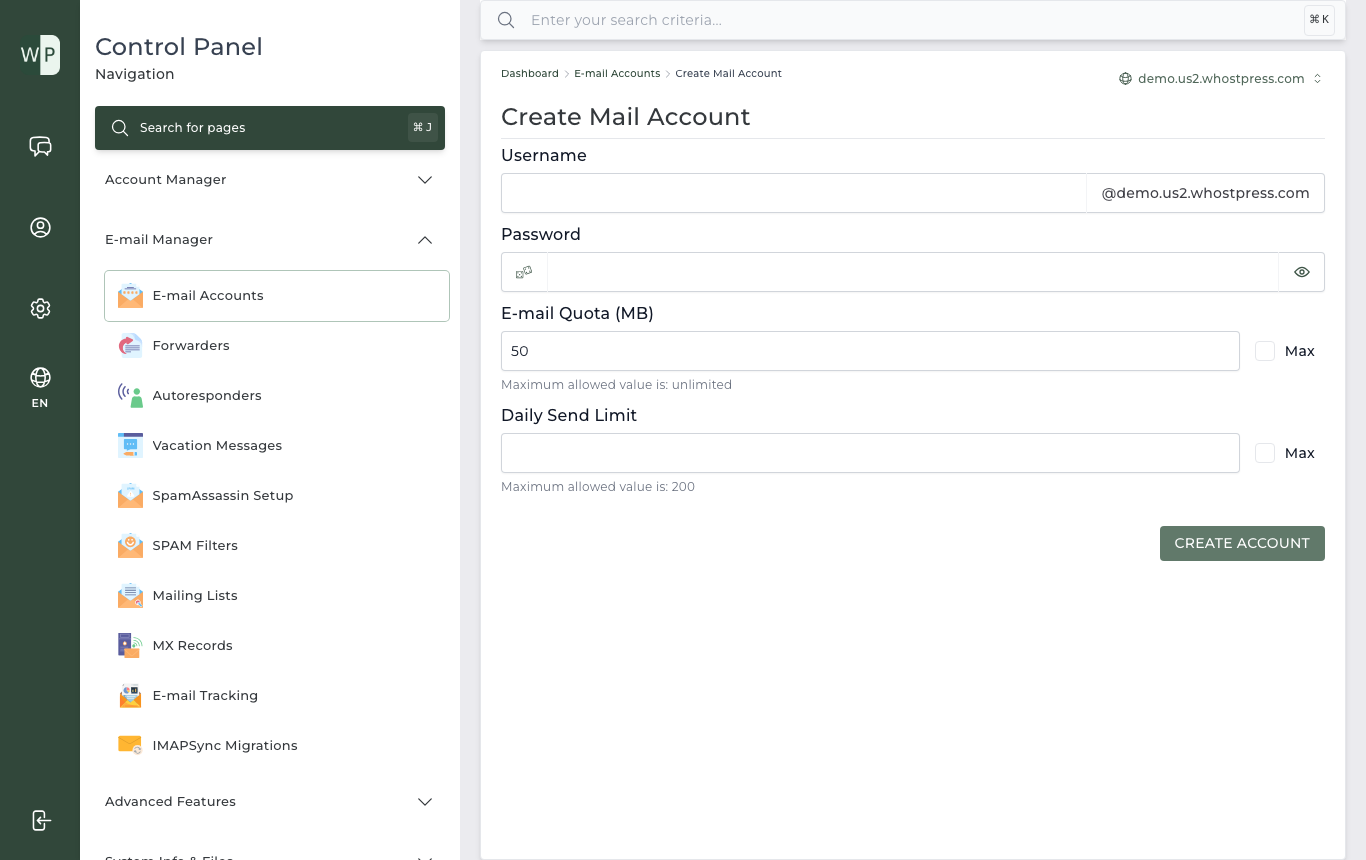
- In the menu on the left, open E-mail Manager and click E-mail Accounts.
- Click Create.
- Type the part before the @ (for example info), a strong password, and the mailbox size. Tick Max to use as much space as your plan allows.
- Click Create Account.
Read your mail in a browser
Go to https://yourdomain.com/roundcube and log in with the full email address and its password.
Settings for Outlook, Apple Mail or your phone
- Incoming server (IMAP):
mail.yourdomain.com, port 993, SSL - Outgoing server (SMTP):
mail.yourdomain.com, port 465 with SSL, or port 587 with STARTTLS - Username: the full email address
- Password: the password you gave the mailbox
Mail only arrives once your domain uses the nameservers from your welcome email. Each mailbox has a daily sending limit set by your plan, which protects your domain from spam problems.
Was this answer helpful?
Related Articles
Powered by WHMCompleteSolution