Whostpress Panel: install WordPress
Print- 0
First, log in to Whostpress Panel. In your client area open Services, choose your hosting plan and click the button to log in to the panel. You can also go to https://panel.whostpress.com and use the username and password from your welcome email.
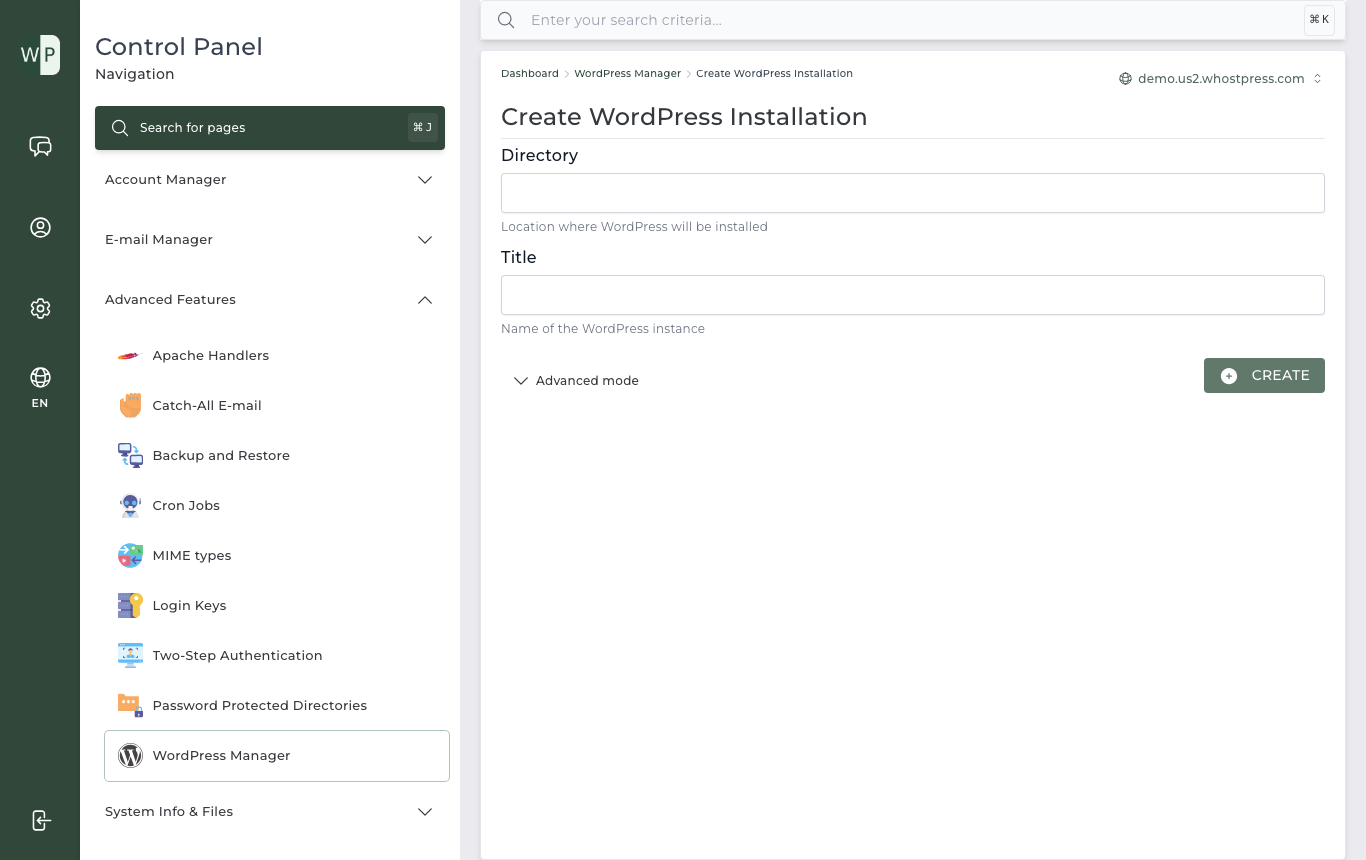
- In the menu, open Advanced Features and click WordPress Manager.
- Click Create.
- Directory: choose your domain's folder,
domains/yourdomain.com/public_html, to put WordPress on your main address. Add/blogat the end to put it at yourdomain.com/blog instead. - Title: the name of your website. Open Advanced mode if you want to choose the admin username, email and password yourself.
- Click Create. When it is done, WordPress Manager lists your site. From there you can log in to WordPress, change passwords and turn automatic updates on or off.
A free SSL certificate is added automatically once your domain points to us, so your site opens with https.
Was this answer helpful?
Related Articles
Whostpress Panel: create an email account and set it up on your phone or computer First, log in to Whostpress Panel. In your client area open Services, choose your hosting plan...
Whostpress Panel: upload your website files First, log in to Whostpress Panel. In your client area open Services, choose your hosting plan...
Powered by WHMCompleteSolution